

1. Introduction / 引言
English:
This one-hour walkthrough is a practical, hands-on tour of Kimi K3 — currently pitched as one of the most powerful open-source AI models available, built in China and priced aggressively compared to closed frontier models. The creator frames the video as “evergreen”: even if you’re watching after newer Kimi releases have dropped, the workflows shown (chat, agent swarms, goal mode, desktop coding, OpenClaw integration, scheduled automations, and a personal “agent operating system”) should still largely apply. The presenter claims to have stress-tested the model across 50 different builds and benchmarked it informally against GLM, Tencent Hunyuan, GPT-5.6, and Fable 5, concluding Kimi K3 is the strongest open-source option they’ve tried, particularly for front-end/visual coding tasks.
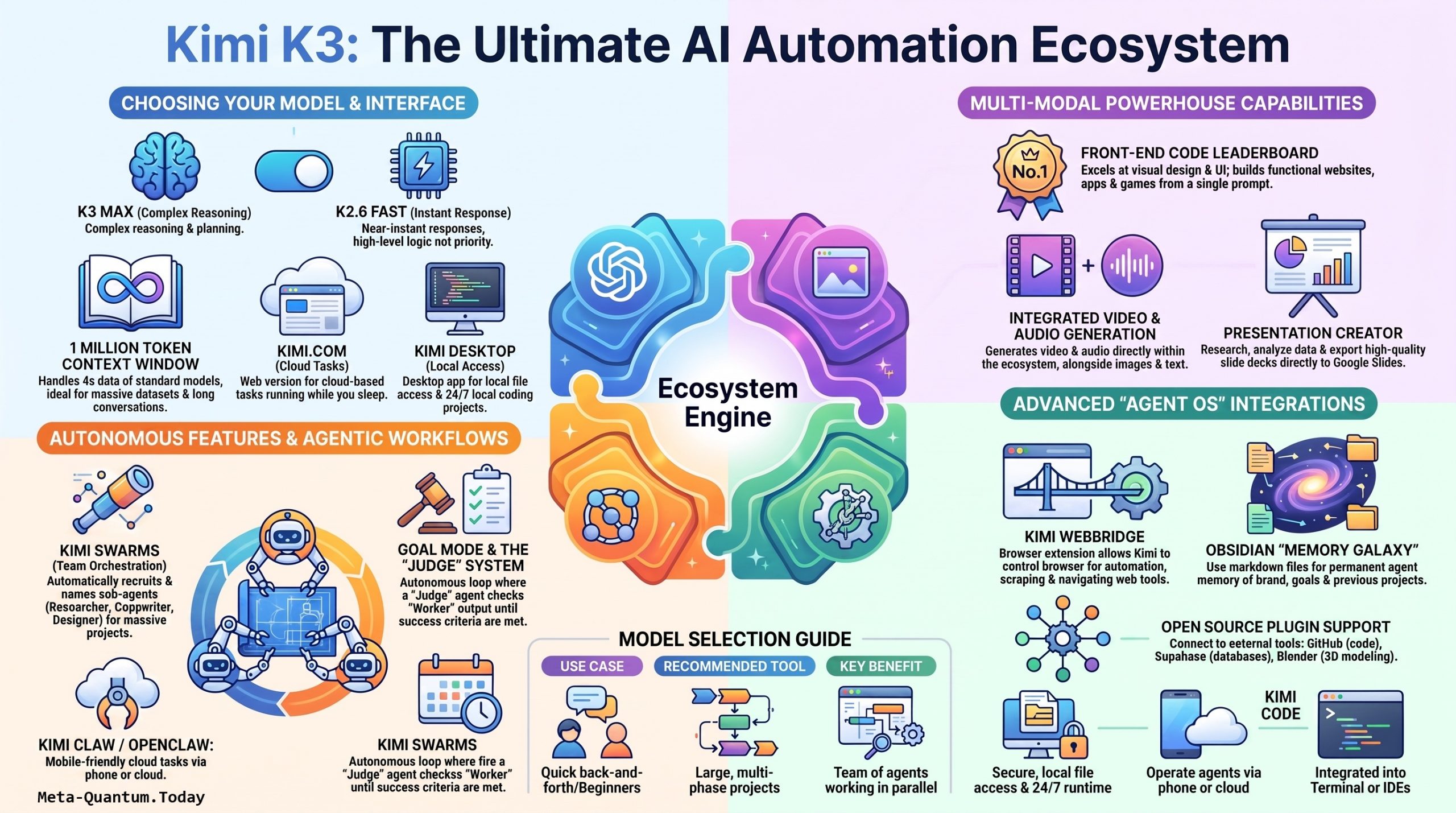
The core thesis of the video is that most users only scratch the surface of Kimi — sticking to the basic chat interface — while the real power lies in its many surrounding products: Kimi.com‘s agent presets, Kimi Swarm (multi-agent teams), Kimi Work desktop app, Kimi Code CLI, Kimi Claw (an OpenClaw-based mobile agent), and plugin/skill ecosystems.
中文(简体):
这段一小时的视频是对 Kimi K3 的一次实战式深度演示。Kimi K3 目前被作者称为”全球最强的开源大模型之一”,来自中国,相较于闭源的前沿模型(如 GPT、Claude)而言价格极具竞争力。作者特别强调本课程内容”常青”(evergreen):即使你是在后续版本发布之后观看,视频中演示的工作流程——聊天对话、智能体集群(Agent Swarm)、目标模式(Goal Mode)、桌面端编程、OpenClaw 集成、定时自动化任务,以及个人”智能体操作系统”——大体上依然适用。
作者声称已经用 50 个不同的项目对该模型进行了压力测试,并非正式地将其与 GLM、腾讯混元、GPT-5.6 和 Fable 5 进行了对比,得出的结论是:在他测试过的所有开源模型中,Kimi K3 是最强的,尤其擅长前端与视觉设计类的编程任务。
视频的核心观点是:大多数用户只使用了 Kimi 最基础的聊天功能,而其真正的威力隐藏在围绕它构建的一整套产品体系中——Kimi.com 的智能体预设、Kimi Swarm(多智能体团队协作)、Kimi Work 桌面应用、Kimi Code 命令行工具、Kimi Claw(基于 OpenClaw 的移动端智能体),以及插件与技能(Skills)生态系统。
2. Video : Build up Kimi 3 ECO System / 视频:构建 Kimi 3 生态系统
3. Features and Concept / 功能与核心理念
English:
Kimi K3’s ecosystem is built around a few key concepts:
- Multiple model variants: K3 Max (agentic, slower, more capable), K2.6 (faster, less agentic), and a choice between a 256K standard context window and a “extra-long” 1M-token context window, which the video notes uses roughly 4x the tokens/quota.
- Kimi.com presets: Chat, Swarm, Slides, Deep Research, Websites, Documents, and Sheets — each a purpose-built agent workflow rather than a raw chat box.
- Agent Swarm: A team-of-agents mode where Kimi automatically “recruits” named sub-agents (e.g., a copywriter, an SEO researcher, a designer) and assigns each a discrete task, all visible in a live dashboard alongside a cloud “virtual computer” preview.
- Goal Mode: An autonomous loop where an AI “judge” evaluates an agent’s output against a stated goal and keeps iterating until the criteria are met — removing the need for repeated prompting.
- Multimodal generation: Image, video, and audio generation are all built into the same chat surface, which the presenter contrasts favorably with ChatGPT (no video) and Claude (no image/video/audio).
- Skills and Plugins: Reusable markdown-based “skills” (e.g., browser use, WhatsApp integration, pitch-deck creation) and third-party plugins (Supabase, GitHub, Cloudflare, image/audio/video generation) that extend agent capability.
- Kimi Work (desktop app): A local, Claude-Code/Codex-style coding environment with adjustable permission levels, project/chat separation, dashboards, memory instructions, and browser control.
- Kimi Claw: A cloud-hosted OpenClaw agent deployable to desktop, Android, or a cloud server — designed for non-technical users who find OpenClaw’s usual GitHub-based setup intimidating.
- Kimi Code CLI / IDE integration: A terminal-based coding agent (installed via a copy-pasted command) comparable to Claude Code, plus IDE plugin support.
- No extra API costs: A recurring point is that plugging Kimi into third-party agent harnesses (OpenClaw, Hermes, Claude Code as a harness) uses your existing subscription via OAuth rather than metered API billing.
- Scheduled tasks & automation: Both Kimi.com (cloud-based, runs while your computer is off) and Kimi Work (local) support recurring, scheduled agent tasks — e.g., daily AI-news roundups or automated ad creative generation.
- Personal “agent operating system”: A more advanced, presenter-built setup (via a paid community, “AI Profit Boardroom”) that centralizes multiple agents (Kimi, Claude, Hermes) into one dashboard, with memory syncing via Obsidian, browser/computer-use automation, content pipelines, lead generation, and even a simulated “AI agent company” org chart (via an open-source project called Paperclip).
中文(简体):
Kimi K3 的生态体系围绕以下几个核心理念构建:
- 多种模型版本: K3 Max(更强大但更慢的智能体模式)、K2.6(响应更快但智能体能力较弱),并可在 256K 标准上下文窗口与 100 万 token 的”超长”上下文窗口之间选择——视频中提到后者大约会消耗 4 倍的 token 配额。
- Kimi.com 预设模式: 聊天、Swarm(集群)、幻灯片、深度研究、网站、文档、表格——每一种都是针对特定场景设计的智能体工作流,而非单纯的对话框。
- 智能体集群(Agent Swarm): 一种”团队协作”模式,Kimi 会自动”招募”若干具名子智能体(例如文案撰写者、SEO 研究员、设计师),并分配各自独立的任务,整个过程可在实时看板与云端”虚拟电脑”预览窗口中查看。
- 目标模式(Goal Mode): 一种自主循环机制,由 AI”评审”(Judge)根据设定目标评估智能体的产出,并持续迭代直至满足标准——用户无需反复输入提示词。
- 多模态生成: 图像、视频、音频生成均内置于同一聊天界面中,作者将此与 ChatGPT(无视频生成)和 Claude(无图像/视频/音频生成)进行对比,认为 Kimi 在这方面更具优势。
- 技能与插件: 基于 Markdown 的可复用”技能”(如浏览器操作、WhatsApp 集成、路演文稿制作)以及第三方插件(Supabase、GitHub、Cloudflare、图像/音频/视频生成),可扩展智能体的能力边界。
- Kimi Work(桌面应用): 一个本地化、类似 Claude Code 或 Codex 的编程环境,支持可调节的权限级别、项目与对话分离、自定义看板、记忆指令设置,以及浏览器控制功能。
- Kimi Claw: 一个基于 OpenClaw 的云端托管智能体,可部署至桌面、Android 手机或云服务器,专为觉得 OpenClaw 常规基于 GitHub 的安装流程过于复杂的非技术用户设计。
- Kimi Code 命令行工具 / IDE 集成: 一个基于终端的编程智能体(通过复制粘贴命令即可安装),可与 Claude Code 相媲美,同时支持 IDE 插件集成。
- 无需额外 API 费用: 视频反复强调,将 Kimi 接入第三方智能体框架(如 OpenClaw、Hermes,或将 Claude Code 作为”外壳”)时,可通过 OAuth 登录使用现有订阅额度,而非按量计费的 API。
- 定时任务与自动化: Kimi.com(云端运行,电脑关机也能执行)与 Kimi Work(本地运行)均支持周期性定时任务,例如每日 AI 资讯汇总或自动生成广告素材。
- 个人”智能体操作系统”: 作者本人搭建的一套更进阶的系统(来自其付费社群”AI Profit Boardroom”),将多个智能体(Kimi、Claude、Hermes)整合至同一看板中,通过 Obsidian 实现记忆同步,并支持浏览器/电脑操作自动化、内容生产管线、销售线索生成,甚至通过开源项目 Paperclip 模拟出一个”AI 智能体公司”组织架构图。
4. Kimi K3 Developer Setup Guide: Installation, Configuration & Examples / Kimi K3 开发者安装配置指南:安装、配置与实例
Scope / 覆盖范围: Kimi K3 (web), Kimi Work (desktop app), Kimi Claw (cloud/mobile OpenClaw agent), Kimi Code (CLI), Kimi Web Bridge (browser extension)
4.0 Prerequisites / 前置条件
English:
- A Kimi account (kimi.com) — free tier available; paid plans unlock more concurrent chats, higher context windows, and desktop/CLI features.
- For desktop/CLI: a supported OS (macOS, Windows, or Linux — verify current support in Kimi’s docs).
- For Kimi Claw: a Google account (used for OAuth login) and, optionally, a messaging account (Telegram, WhatsApp, WeChat, QQ) if you plan to connect a channel.
- For Kimi Web Bridge: Google Chrome or a Chromium-based browser.
- Basic terminal familiarity for the CLI steps (copy/paste is sufficient — no coding required).
中文(简体):
- 一个 Kimi 账号(kimi.com)——提供免费套餐;付费套餐可解锁更多并发对话数、更高的上下文窗口以及桌面端/CLI 功能。
- 桌面端/CLI:需使用受支持的操作系统(macOS、Windows 或 Linux——请以 Kimi 官方文档中当前支持的系统为准)。
- Kimi Claw:需要一个 Google 账号(用于 OAuth 登录),如需连接消息渠道(Telegram、WhatsApp、微信、QQ),还需相应账号。
- Kimi Web Bridge:需使用 Google Chrome 或基于 Chromium 内核的浏览器。
- CLI 部分只需具备基础的终端操作能力(复制粘贴即可,无需编程基础)。
4.1 Kimi K3 (Web) — Base Setup / 网页版基础设置
English:
- Navigate to
kimi.comand sign in (or create an account). - From the composer, note the preset tabs: Chat, Swarm, Slides, Deep Research, Websites, Documents, Sheets.
- Set your model in the model selector:
K3 Max— full agentic reasoning, slower, best output quality.K2.6/K2.6 Fast— faster, less agentic, good for quick Q&A.
- Set your context window:
- Standard (256K tokens) — default, uses less quota.
- Extra-long (1M tokens) — ~4x quota cost; use only for long documents or extended back-and-forth sessions.
- (Optional) Upgrade your plan if you need more than the default number of simultaneous chat sessions (the video shows a default limit of 4 concurrent chats on a mid-tier plan).
Example prompt:
Build me a beautiful website for an SEO agency.
Use my brand colors: navy blue and gold.
Include a homepage, services page, and contact form.
中文(简体):
- 打开
kimi.com并登录(或注册新账号)。 - 在输入框上方注意查看预设标签:聊天、Swarm(集群)、幻灯片、深度研究、网站、文档、表格。
- 在模型选择器中设置所需模型:
K3 Max—— 完整智能体推理能力,速度较慢,输出质量最佳。K2.6/K2.6 Fast—— 响应更快、智能体能力较弱,适合快速问答。
- 设置上下文窗口:
- 标准版(256K token)—— 默认选项,消耗配额较少。
- 超长版(100万 token)—— 消耗约 4 倍配额,仅建议在处理长文档或长时间多轮对话时使用。
- (可选)如果默认的并发对话数量不足(视频中显示中等套餐默认限制为 4 个并发对话),可考虑升级套餐。
示例提示词:
为一家 SEO 代理公司做一个漂亮的网站。
使用我的品牌色:藏青色和金色。
包含首页、服务页面和联系表单。
4.2 Kimi Work (Desktop App) — Installation & Configuration / 桌面应用安装与配置
English:
Installation:
- From kimi.com (or the Kimi product page), locate the desktop app download link for your OS.
- Download and install as you would any desktop application. Sign in with your existing Kimi account credentials once launched.
- Check for updates from within the app (the video shows an in-app update indicator that reflects your current plan).
Configuration:
- Permissions: On first project setup, Kimi Work will ask what level of local access to grant:
- Ask before each action (safer, more control — recommended for first-time users).
- Full access (faster, no interruptions — for advanced users comfortable with an agent modifying/deleting local files).
- Theme: Toggle dark/light mode in settings.
- Browser access: Optionally allow the desktop app to interact with your browser (separate from the Web Bridge extension — this is a permission toggle within Kimi Work itself).
- Memory instructions: Add a persistent memory/context block describing yourself, your projects, and your preferences, so every new chat or project inherits that context.
- Dashboard: Customize a widget-based dashboard (cover image, pinned info, resizable panels) to track ongoing projects at a glance.
- Projects vs. Chats: Use Chats for short back-and-forth tasks; use Projects for long-running work you’ll return to repeatedly (each project keeps its own file context and conversation history).
Example — starting a new local coding project:
New Project → "neon-snake-game"
Prompt: "Create a beautiful neon snake game in HTML and CSS. Launch it for me."
If the local preview doesn’t load:
Prompt: "Make sure this is up and running, then open it in Chrome for me."
中文(简体):
安装步骤:
- 在 kimi.com(或 Kimi 产品页面)中找到适配你操作系统的桌面应用下载链接。
- 像安装其他桌面应用一样完成下载与安装,启动后使用已有 Kimi 账号登录。
- 应用内可查看更新状态(视频中显示应用内有更新提示,并会显示你当前所使用的套餐)。
配置步骤:
- 权限设置: 首次创建项目时,Kimi Work 会询问要授予何种级别的本地访问权限:
- 每次操作前询问(更安全、可控性更高——建议初次使用者选择)。
- 完全授权(速度更快、无需中断确认——适合能够接受智能体自行修改/删除本地文件的进阶用户)。
- 主题设置: 可在设置中切换深色/浅色模式。
- 浏览器访问权限: 可选择性允许桌面应用与浏览器交互(此为 Kimi Work 内部的独立权限开关,不同于 Web Bridge 扩展)。
- 记忆指令: 添加一段持久化的记忆/上下文说明,介绍你自己、你的项目及偏好,使每个新对话或项目都能继承这些背景信息。
- 仪表盘: 可自定义基于组件的仪表盘(封面图片、置顶信息、可调整大小的面板),一目了然地追踪进行中的项目。
- 项目 vs. 对话: *对话(Chats)*适用于简短的来回交流任务;*项目(Projects)*适用于需要反复回顾的长期工作(每个项目都会独立保留文件上下文与对话历史)。
示例——新建本地编程项目:
新建项目 → "neon-snake-game"(霓虹贪吃蛇游戏)
提示词:"用 HTML 和 CSS 制作一个漂亮的霓虹贪吃蛇游戏,并帮我启动它。"
如果本地预览未能正常加载:
提示词:"请确保这个正常运行,然后帮我在 Chrome 中打开它。"
4.3 Kimi Claw (Cloud/Mobile OpenClaw Agent) — Installation & Configuration / 云端/移动端 OpenClaw 智能体安装与配置
English:
Background: Kimi Claw is Kimi’s simplified wrapper around OpenClaw, an open-source AI agent framework that normally requires a GitHub-based setup — something many non-technical users struggle with. Kimi Claw removes that friction.
Installation/Setup:
- From the Kimi interface, go to the Claw section and click “Add Claw.”
- Choose a deployment target:
- Desktop app
- Android phone
- Cloud server
- Name your agent (e.g., “Julian”).
- Choose a voice for the agent.
- Describe its intended purpose in plain language (e.g., “content creation” and “workplace productivity”).
- Click through to deploy — this typically takes under a minute.
Configuration:
- Settings: Rename the agent, open its terminal, restart it if it becomes unresponsive, view usage stats, or reset the instance.
- Backups: Create a backup and restore from a previous backup if needed.
- Channel connections: Preset channels shown are often China-market-focused (WeChat, QQ). To connect Telegram, WhatsApp, or others not listed:
The agent will walk you through obtaining and entering the relevant access token.Ask inside the chat: "Tell me how to connect you to Telegram." - Known limitation: The presenter notes Kimi Claw can be unstable immediately after a new model launch (likely server load) — expect this to stabilize over time.
Example — scheduling a recurring task via Kimi Claw:
"Schedule a task every day at 5:00 PM: create a new Facebook ad for an SEO agency,
in vertical format as an image. Give me three different copy options optimized
for 'free SEO strategy session,' written in a Dan Kennedy direct-response style.
Also generate one video version."
中文(简体):
背景介绍: Kimi Claw 是 Kimi 对 OpenClaw(一个开源 AI 智能体框架)进行简化封装后的产品。OpenClaw 原本需要通过 GitHub 进行较为复杂的安装设置,这对许多非技术用户来说门槛较高,而 Kimi Claw 大幅降低了这一使用门槛。
安装/设置步骤:
- 在 Kimi 界面中进入 Claw 板块,点击 “Add Claw”(添加智能体)。
- 选择部署目标:
- 桌面应用
- Android 手机
- 云服务器
- 为智能体命名(例如”Julian”)。
- 为智能体选择语音。
- 用简单的语言描述其用途(例如”内容创作”与”办公效率提升”)。
- 依提示完成部署——通常不到一分钟即可完成。
配置说明:
- 设置: 可重命名智能体、打开其终端、在出现异常时重启、查看使用统计,或重置实例。
- 备份: 可创建备份,并在需要时从历史备份中恢复。
- 渠道连接: 界面预设的渠道通常偏向中国市场(微信、QQ)。如需连接 Telegram、WhatsApp 等未列出的渠道:
智能体会引导你获取并输入相应的访问令牌(access token)。直接在对话中询问:"告诉我如何将你连接到 Telegram。" - 已知限制: 作者指出,Kimi Claw 在新模型刚发布时可能会出现不稳定的情况(很可能是服务器负载过高所致)——预计随时间推移会逐步趋于稳定。
示例——通过 Kimi Claw 设置定时任务:
"每天下午 5 点安排一个任务:为一家 SEO 代理公司制作一张竖版格式的 Facebook 广告图片,
给我三种不同的文案方案,围绕'免费 SEO 策略咨询'进行优化,
采用丹·肯尼迪(Dan Kennedy)式的直效回应文案风格。
另外再生成一个视频版本。"
4.4 Kimi Code (CLI) — Installation & Configuration / 命令行工具安装与配置
English:
Installation:
- Go to the Kimi Code page within the Kimi product suite.
- Copy the provided install/update command.
- Open your terminal and paste the command. This will:
- Install Kimi Code if not already present, or
- Update it to the latest version if already installed.
(Note: the exact command was shown on-screen in the video but not spoken aloud verbatim — check the current Kimi Code page for the precise install string, as it may resemble a pattern like curl -fsSL https://.../install.sh | sh or an npm-based installer. Verify against official docs before running.)
- IDE integration is also available (e.g., a VS Code extension/plugin) if you prefer coding inside an IDE rather than the terminal.
Configuration & Usage:
- Launch the CLI by typing:
kimi - The default model may be an older generation (e.g., K2.7). Switch models with:
Then select K3 (or your desired version) from the resulting list./model - Use it like any terminal-based coding agent (comparable to Claude Code) — describe what you want built or changed, and it will read/write files in your working directory.
Example session:
$ kimi
> /model
[select: Kimi K3]
> Set up a Node.js Express server with a single /health endpoint that returns {“status”:”ok”}.
No extra API billing: If you already have a Kimi subscription, using Kimi Code (or plugging Kimi into other agent harnesses via OAuth) does not incur additional per-token API charges — it draws from your subscription plan.
中文(简体):
安装步骤:
- 进入 Kimi 产品套件中的 Kimi Code 页面。
- 复制页面提供的安装/更新命令。
- 打开终端并粘贴该命令,系统将会:
- 若尚未安装 Kimi Code,则进行安装;
- 若已安装,则更新至最新版本。
(提示:视频中该命令是以屏幕展示的方式呈现,并未逐字念出——请以 Kimi Code 官方页面当前提供的准确安装命令为准,其形式可能类似于 curl -fsSL https://.../install.sh | sh 或基于 npm 的安装方式。在运行前请务必核实官方文档。)
- 如果你更习惯在 IDE 中编程而非使用终端,也可使用 IDE 集成(例如 VS Code 插件/扩展)。
配置与使用:
- 在终端中输入以下命令启动 CLI:
kimi - 默认模型可能是较旧的版本(例如 K2.7)。可通过以下命令切换模型:
然后从列表中选择 K3(或你所需的版本)。/model - 使用方式与其他基于终端的编程智能体类似(可与 Claude Code 相媲美)——只需描述你想构建或修改的内容,它便会在你的工作目录中读写文件。
示例会话:
$ kimi
> /model
[选择:Kimi K3]
> 搭建一个 Node.js Express 服务器,包含一个 /health 接口,返回 {"status":"ok"}。
无需额外 API 费用: 如果你已经拥有 Kimi 订阅套餐,使用 Kimi Code(或通过 OAuth 将 Kimi 接入其他智能体框架)不会产生额外的按 token 计费的 API 费用——而是直接消耗你的订阅套餐额度。
4.5 Kimi Web Bridge (Browser Extension) — Installation & Configuration / 浏览器扩展安装与配置
English:
⚠️ Only enable this if you’re comfortable with an AI agent directly controlling your browser.
Installation:
- From within Kimi Work (desktop app), locate Kimi Web Bridge and click to add/install the browser extension.
- Follow the browser’s standard extension-install confirmation prompts.
- Confirm the connection status inside Kimi Work (it will show as connected once the extension is active and paired).
Configuration & Usage:
- Start a new chat in Kimi Work.
- Issue a browser-control instruction, e.g.:
Open Google in my browser. - When browser automation is active, the controlled tab is visually indicated (the video shows an orange underline/border on the active automated tab) so you always know when the AI is in control.
- Practical use cases include automating social media posting, form-filling, or navigating multi-step web workflows.
- To disable: Go to the plugin/extension manager and click “Remove” — the desktop agent immediately loses browser control.
Example:
"Open my email in the browser, find the latest message from [client name],
and draft a reply confirming next Tuesday's 2 PM call."
(As with any browser-automation tool, review AI-drafted actions — especially anything that sends messages, submits forms, or makes purchases — before letting it run unattended.)
中文(简体):
⚠️ 仅在你能够接受 AI 智能体直接操控你的浏览器时才启用此功能。
安装步骤:
- 在 Kimi Work(桌面应用)中找到 Kimi Web Bridge,点击添加/安装浏览器扩展。
- 按照浏览器标准的扩展安装确认流程进行操作。
- 在 Kimi Work 内确认连接状态(扩展激活并配对成功后会显示为”已连接”)。
配置与使用:
- 在 Kimi Work 中新建一个对话。
- 发出浏览器控制指令,例如:
在我的浏览器中打开 Google。 - 当浏览器自动化功能处于激活状态时,被控制的标签页会有明显的视觉提示(视频中显示为橙色下划线/边框),让你随时清楚知道 AI 何时在进行操作。
- 实际应用场景包括:自动发布社交媒体内容、自动填写表单,或完成多步骤的网页操作流程。
- 禁用方法: 进入插件/扩展管理界面,点击”移除”(Remove)——桌面端智能体会立即失去对浏览器的控制权限。
示例:
"在浏览器中打开我的邮箱,查找来自 [客户姓名] 的最新邮件,
起草一封回复,确认下周二下午 2 点的通话安排。"
(与任何浏览器自动化工具一样,在让 AI 无人监督运行之前,请务必审核其起草的操作内容——尤其是涉及发送消息、提交表单或进行购买的操作。)
4.6 Quick Reference: Which Tool for Which Job / 快速参考:不同场景对应的工具选择
| Scenario / 场景 | Recommended tool / 推荐工具 |
|---|---|
| Beginner, quick back-and-forth tasks / 新手,简单来回任务 | Kimi.com Chat / Kimi.com 聊天 |
| Large multi-part project (site + content + design) / 大型多环节项目 | Kimi Swarm / Kimi Swarm 集群 |
| Local, day-to-day coding project / 本地日常编程项目 | Kimi Work (desktop) / Kimi Work(桌面端) |
| Agentic tasks you want to run from your phone / 需要在手机端运行的智能体任务 | Kimi Claw (via OpenClaw) / Kimi Claw(基于 OpenClaw) |
| Terminal-native coding / IDE-based coding / 终端或 IDE 编程 | Kimi Code CLI |
| Automating actions inside a real browser session / 在真实浏览器会话中执行自动化操作 | Kimi Web Bridge |
| Recurring/scheduled work / 周期性/定时任务 | Kimi.com scheduled tasks (cloud, runs while offline) or Kimi Work scheduled tasks (local) / Kimi.com 定时任务(云端,离线也可运行)或 Kimi Work 定时任务(本地) |
5. Summary of Configuration & Examples / 配置及示例概述
English:
a) Chat & website building: Typing a plain-language prompt like “build me a beautiful website for an SEO agency” produces a live preview pane (a cloud “virtual computer”) alongside the chat, with Kimi narrating its progress step by step.
b) Agent Swarm example: Prompting Kimi to “build a beautiful website for a blog about Hermes agent and create five blog posts… do all the keyword research” triggers Kimi to recruit named sub-agents (e.g., copywriters and a designer), each with a discrete task, running in parallel and reportable over hours.
c) Goal Mode example: A prompt to “create an SEO keyword research tool… fully customized to my niche” is set as a goal; Kimi’s internal judge/agent loop keeps refining the tool until the stated criteria are satisfied, without further manual prompting.
d) Slides and images: Selecting a slide template and prompting “create a beautiful slide deck about the latest updates from Kimi K3” produces a full researched presentation, exportable to Google Slides. Separately, prompting “create an image of a dragon in the sky” demonstrates built-in image generation.
e) Skills marketplace: Users can browse, import, and tweak pre-built skills (e.g., a copy-editing skill or browser-use skill) rather than building workflows from scratch.
f) Publishing: Completed sites can be published instantly to a Kimi subdomain (kimi.page) or connected to plugins like Cloudflare and GitHub for custom hosting and open-sourcing.
g) OpenClaw / Kimi Claw: A named agent (“Julian”) is created in under a minute and can be connected to messaging channels (WhatsApp, Telegram, etc. — obtained by simply asking the chat how to connect, rather than using only the preset Chinese-market channels shown).
h) Kimi Work + Hermes agent integration: The video demonstrates plugging Kimi’s coding plan (via OAuth, not API billing) into an open-source agent called Hermes, configuring it to browse a GitHub repo and set itself up automatically.
i) Kimi Code CLI in practice: Running kimi in the terminal launches the CLI; typing /model lets you switch between K2.7 (default) and K3.
j) Scheduled/recurring automation: Example prompt: “research the latest AI automation news… give me content ideas… broken into a bulleted list with sources,” scheduled to run daily at 9:00 a.m. — demonstrated both via chat-guided setup and manual field entry (name, requirement, frequency, time, expiry).
k) Advanced “agent operating system”: The presenter shows a personal dashboard unifying Kimi Code, Claude, and Hermes agents, with sub-systems for a voice-activated assistant (“Hermes Apollo”), a news/content pipeline (“Hermes Oracle”) that published and ranked a blog article on Google within seven hours, a competitor-monitoring tool (“Hermes Astros”), a Blender MCP integration for 3D modeling, a lead-generation agent (via Hunter API), and an Obsidian-based memory system that gives every agent persistent context about the user.
中文(简体):
a) 聊天与网站搭建: 只需输入一句简单的自然语言指令,例如”为一家 SEO 代理公司做一个漂亮的网站”,系统便会在聊天窗口旁展示实时预览面板(云端”虚拟电脑”),Kimi 会逐步讲解其操作进度。
b) 智能体集群实例: 向 Kimi 提出”为 Hermes agent 做一个博客网站并撰写五篇博文……完成所有关键词调研”的指令后,Kimi 会自动招募具名子智能体(如文案撰写者、设计师),各自负责独立任务,并行运行,耗时可达数小时。
c) 目标模式实例: 将”创建一个完全针对我所在细分领域定制的 SEO 关键词研究工具”设为目标后,Kimi 内部的评审/智能体循环会持续优化该工具,直至满足既定标准,全程无需人工反复干预。
d) 幻灯片与图像生成: 选择幻灯片模板并输入”制作一份关于 Kimi K3 最新更新的精美幻灯片”,系统会生成一份经过深入研究的完整演示文稿,可导出至 Google 幻灯片。此外,输入”生成一张天空中的一只猫吃饼干的图片”(示例中为龙的图像)即可演示内置的图像生成功能。
e) 技能市场: 用户可浏览、导入并调整现成的技能(如文案校对技能或浏览器操作技能),而无需从零搭建工作流。
f) 网站发布: 完成的网站可即时发布至 Kimi 子域名(kimi.page),也可连接 Cloudflare、GitHub 等插件实现自定义托管与开源发布。
g) OpenClaw / Kimi Claw: 不到一分钟即可创建一个具名智能体(示例中名为”Julian”),并连接至消息渠道(WhatsApp、Telegram 等——只需在对话中直接询问如何连接即可,无需局限于系统预设的几个中国市场渠道)。
h) Kimi Work 与 Hermes agent 集成: 视频演示了如何通过 OAuth(而非按量计费的 API)将 Kimi 的编程套餐接入开源智能体 Hermes,并配置其自动浏览 GitHub 仓库并完成自我配置。
i) Kimi Code CLI 实操: 在终端输入 kimi 即可启动命令行工具;输入 /model 可在默认的 K2.7 与 K3 之间切换。
j) 定时/周期性自动化: 示例指令为”研究最新的 AI 自动化资讯……给我一些内容创意……以带来源的项目符号列表形式呈现”,并设置为每天早上 9 点自动运行——视频演示了通过对话引导设置以及手动填写字段(名称、需求、频率、时间、到期时间)两种方式。
k) 进阶版”智能体操作系统”: 作者展示了一个整合 Kimi Code、Claude 与 Hermes 智能体的个人看板,其中包含:语音激活助手(”Hermes Apollo”)、7 小时内即完成发布并在 Google 上获得排名的资讯/内容生产管线(”Hermes Oracle”)、竞品监控工具(”Hermes Astros”)、用于 3D 建模的 Blender MCP 集成、基于 Hunter API 的销售线索生成智能体,以及基于 Obsidian 的记忆系统——使每个智能体都能持续获取关于用户的上下文信息。
6. Conclusion & Key Takeaways / 结论与关键要点
English:
The video positions Kimi K3 not just as “another chatbot” but as the hub of a broader agentic ecosystem — chat, swarms, goal-driven autonomy, desktop coding, mobile cloud agents, scheduled automation, and multimodal generation, all reachable without per-call API billing. The presenter is candid about current rough edges (Kimi Claw being unstable on launch day, occasional broken previews, imperfect first-pass tool outputs), which is a useful, balanced note for anyone expecting a flawless experience from a same-day model release.
Key takeaways:
- Kimi K3 is presented as a leading open-source model, especially strong for visual/front-end coding and agentic workflows.
- Most of Kimi’s real value lives outside the basic chat box — in Swarm, Goal Mode, Work (desktop), Code (CLI), and Claw (mobile/cloud).
- Using Kimi (or any subscription AI model) inside third-party agent harnesses like OpenClaw or Hermes via OAuth avoids extra API costs.
- Goal Mode and scheduled tasks reduce the need for constant re-prompting — design a “loop,” not just a prompt.
- A persistent memory layer (e.g., Obsidian) is what turns a generic model into a personalized assistant across tools.
- Expect bugs and rough edges, especially with day-one releases — this is described as a normal part of working with fast-moving AI agents.
中文(简体):
这段视频将 Kimi K3 定位为不仅仅是”又一个聊天机器人”,而是一个更广泛的智能体生态系统的核心枢纽——涵盖聊天、集群协作、目标驱动的自主执行、桌面端编程、移动云端智能体、定时自动化以及多模态生成,且全程无需按次计费的 API 费用。作者也坦诚地指出了当前存在的一些不足之处(例如 Kimi Claw 在发布当天运行不稳定、预览偶尔出错、首次生成结果并不完美),这对于期待”发布即完美”体验的用户来说是一个值得参考的平衡视角。
关键要点:
- Kimi K3 被定位为领先的开源模型,尤其擅长视觉/前端编程与智能体工作流。
- Kimi 真正的价值大多存在于基础聊天框之外——体现在 Swarm(集群)、目标模式、Work(桌面端)、Code(命令行工具)与 Claw(移动/云端)等功能中。
- 通过 OAuth 将 Kimi(或任何订阅制 AI 模型)接入第三方智能体框架(如 OpenClaw、Hermes),可避免额外的 API 费用。
- 目标模式与定时任务减少了持续手动输入提示词的需求——设计的是一个”循环”,而不仅仅是一句提示词。
- 持久化的记忆层(如 Obsidian)是让通用模型转变为跨工具个性化助手的关键。
- 应预期会遇到一些程序错误与不完善之处,尤其是新版本刚发布时——这被视为使用快速迭代的 AI 智能体过程中的正常现象。
7. References / 参考资料
- Kimi platform (referenced in video): kimi.com
- Open-source tools mentioned: OpenClaw, Hermes agent, Paperclip, Obsidian, Blender MCP
